Showing posts with label Google Chrome. Show all posts

Thursday, February 27, 2020

Chromebook Accessibility

Chromebook Accessibility

Ensuring all students have the opportunity to participate in digital content.

Created by Scott Aten, February 27, 2020
I recently participated in a webinar with a team of Google Program Managers for Chrome OS that focused on accessibility features that come on all of our Chromebooks. I learned a lot from this webinar and wanted to be sure to share it with you. We are all responsible for educating a wide range of learners. There are times we may provide digital content to some students who will have difficulty accessing it and that is where these features can make a difference. It will serve all teachers to be aware of these features and how to help students access them.

I am going to break down what I saw in the presentation and I am also going to provide you with the link to the webinar in the event you would like to watch it for yourself and see everything demonstrated.

Many of the features will require the Accessibility Features to be turned on. Here is how you turn them on:

  • Turn on Accessibility features of a Chromebook
    • Click the status tray (the clock area in the lower left corner)
    • Click the settings button (the gear)
    • Click Advanced
    • Click Accessibility
    • Toggle On
Making things Easier to See

  • Increase the size of browser content - just the browser, the desktop is unaffected
    • Zoom-In (ctrl + plus key)
    • Zoom-out (ctrl + minus key)
    • Reset (ctrl + 0)
  • Full Screen Magnifier - Zooms everything in
    • TAB Key can help you toggle to different parts of the screen
    • ctrl + alt + increase brightness button - zoom out
    • ctrl + alt + decrease brightness button - zoom in
  • Docked Magnifier - splits the screen to allow you to magnify an area, but still see everything in normal size at the same time.
  • Adjustable Mouse Cursor - makes the mouse cursor larger and easier to see.
    • Click on the status tray (clock)
    • Click the settings button (gear)
    • Click Accessibility
    • Mouse and Touch pad
    • Toggle on the "Show large mouse cursor"
    • Adjust the size with the slider
  • Highlight - Three options to help bring focus to where a student is working
    • Text Caret - visual clue of where you are on the page. Appears blue but disappears after a few seconds.
    • Move Cursor - Puts a red circle around the mouse to help you see where it is at.
    • Object with Keyboard Focus - Puts a box around where to type and then disappears
  • High Contrast - Inverts the colors of the screen for students with light sensitivity.
    • ctrl + search button (magnifying glass) + H will toggle on and off
Features for Improved Motor Interactions
  • Easy Dictation - allows students to speak what they want typed in any editable area or search box.
    • When turned on you will see a microphone in the lower left portion of the Chromebook screen
    • Click the Mic icon OR search button + D to activate
  • On Screen Keyboard/Hand Writing Mode - can be used if students have difficulty using the keyboard. This will allow them to click the letters they want to type using the touch pad or a mouse.
  • Automatic Clicks - if students have trouble using the touch pad to left click, right click, double click, etc
  • Sticky Keys - can be set to replace multi button key sequences (i.e. Shift plus a letter to make capitals)
Captions and Making Content Easier to Hear
  • Mono Audio - For students with limited hearing in one ear, this will make both headphone speakers play the same sound. Eliminates what they may miss in stereo mode.
  • Captions - use the closed captions feature of Google Slides. Will display what you say as you speak when presenting a Google Slides presentation.
  • Select to Speak - Built in read aloud tool. - DON'T MISS THIS ONE!!
    • Once turned on the student can press search button + click and drag a box around what they want read allowed. Works on Google Form Quizzes in locked mode as well.
    • For students that are English Language Learners - they can switch the language to their native language and use it to translate speak the English text in their native language.

There is a lot of good tools listed here. If you have students that have visual, fine motor, or hearing issue, then many of these FREE features could help them access the content you have been assigning.


For more helpful information and the archive of previous posts, look for items in the menu to the left.


bulldogstrong.jpg

Green Local Schools

Tech Integration Team

Wednesday, October 9, 2019

The Chromebook Classroom

Looking for ways to use the Chromebook in your classroom?

Created by Scott Aten, October 9, 2019
Many times I listen to podcasts as I fall asleep at night. Most of them are for personal enjoyment, but one that I occasionally listen to is by Josh Sowash called "The Chromebook Classroom". In this podcast he offers ideas on how teachers can use the Chromebook to help students learn. In the first
podcast this month he featured several links to provide ideas for teachers. I wanted to pass along
some of them to you...

1) Halloween Hyperdoc (grades 6-8) - If you are unfamiliar with Hyperdocs, this would be a good intro. Hyperdocs is a digital document—such as a Google Doc—where all components of a learning cycle have been pulled together into one central hub. Within a single document, students are provided with hyperlinks to all of the resources they need to complete that learning cycle. They usually incorporate student as a part of the lesson.

2) Six Chrombook shortcuts to save time (grades 3-12) - Learning a few Chromebook shortcuts can be a real time saver for students and teachers. This blog post offers shortcuts to: Dock the browser windows, switch between browser tabs, recover closed tabs, use the cap lock, and launching apps
that are in the "shelf" or task bar.

3) Google Slides Journal Template (Any grade where writing is important - hint ALL) - Do your students journal? This template done in Slide and is expandable and flexible. If you set this up in conjunction with your Google Classroom it can be used all year long. Great way to get your students writing, simply add a new prompt as an announcemen in your Google classroom and students just add a new slide and continue to journal.

4) Carve-a-pumpkin in Google Slides - (grades K-2) - Skills reinforced here are drag and drop as well as an opportunity to do some writing.

5) SAMR Student Choice Matrix - (grades K-12) - I have given a presentation in many staff meetings about the tech integration model known as SAMR. The purpose of the model is to have teachers evaluate their activities to see how they are integrating technology into their lessons. This Choice Matrix can help provide you with some ideas and tools to evaluate some of your lessons through the SAMR lens.

6) Is your Chromebook broken? - (grades 3-12) - If you are looking to become a little more knowledgeable on how to do some basic trouble shooting for your students, then this site is a great place to start. The site offers a few things teachers can do to help their students before you send them to the library. Help reduce the loss of instructional time by educating yourself on these tips.

7) Four Ideas for any Classroom - (K-12) - Josh is holding a FREE webinar TONIGHT. This webinar will explore 4 simple ways you can use Chromebooks in any classroom. The webinar is Wednesday
October 9th from 8:00-9:30. You can also request a replay of the session if you are unable to view
the live session tonight.

Hopefully one of these links will be of interest to you. I know sometimes the biggest hurdle with having
Chromebooks is finding good ways to use them, so I will continue to look for resources and provide
tips like this post to help you help your students.

[Green Google Training Center]


For more helpful information and the archive of previous posts, look for items in the menu to the left.


bulldogstrong.jpg

Green Local Schools

Tech Integration Team

Friday, October 4, 2019

Google Cast for Education

Google Cast for Education

Allow students to "Broadcast" their Chromebook for the class to see.

Created by Scott Aten, October 4, 2019
I have actually talked about this extension in an earlier post, but Marc came across someone at a meeting at NEOnet that created these step-by-step directions that walk you through exactly what
needs to happen both on the teacher side and the student side.

So let's review what the Google Cast for Education extension will do. It allows the teacher to broadcast any student device. Since we are essentially 1-1 in the district, all students have a Chromebook or
access to a Chromebook while in your class. You can now have them show their screen to the entire
class (projected) by "casting" to the teacher computer. This is a great tool for presentations, demonstrating a skill to the class, or asking a question in which the entire class may benefit.

Here is what we found [link to the document itself]

Teacher PC Setup

  1. Download the “Google Cast for Education extension from the Chrome Web Store


  2. In the Chrome browser, go to the URL Chrome://flags/#enable-native-notifications
    Disable “Enable native notifications”, then close Chrome and restart it.
  3. In the top right corner of the Chrome browser click on the Google Cast for Education extension icon


  4. Add A “Receiver Name” I would suggest using your 2 digit building abbreviation and your room number.  Ex:High School room 1106 would use “HS1106”.
    *It is recommended that you check only the top 2 settings options and then click save. 

  5. Set sharing permissions for users who will be able to Cast to your teacher computers “Cast receiver”.
    *It is recommended to share only “Can Request” permissions to students, specifically students in your class.  The easiest way to do this is by sharing to the whole Google classroom.
  6. In a few seconds your teacher PC will get a popup in the bottom left corner.  It will list the students name (in this case:HS Student) and say what they are trying to present (in this case: a New Tab) you will have the ability to Accept if you want that student to display that source on your desktop computer screen.
    *For most, it would also display on your projector
Student Setup

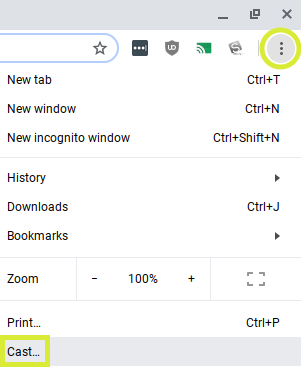
  1. Click the 3 dots “options” button in the top right of the Chrome browser, then select the “Cast…” option.

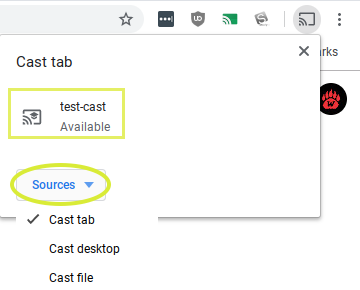
  2. If it says “No devices found” the students will need to perform step 3, otherwise go to step 4.

  3. Two-finger click (right-click) on the cast icon that appears in the extension bar, then go down and check “Enable cloud services”.  When step 1 is completed again, it should now show all available Cast receivers (that the student has permissions to).

  4. Before connecting to the Available Cast receiver first drop-down “Sources” and select what you want to cast to the teacher display: just the active tab, your desktop (all windows), or just a file.  Once you select the proper source then you may click on the cast receiver you want to cast to.

And that is all you need to do to have your students "broadcast" their Chromebooks to your device.

[Green Google Training Center]


For more helpful information and the archive of previous posts, look for items in the menu to the left.


bulldogstrong.jpg

Green Local Schools

Tech Integration Team

Tuesday, April 2, 2019

G Suite Accessibility Features

G Suite Accessibility Features

Make learning accessible to all your students.

Created by Scott Aten, April 2, 2019
Research shows that nearly 14% of students live with some sort of disability. Many of these students and their parents rely on some form of visual or audio accommodation to accompany their learning. In truth many of these accommodations benefit all students. This article will
provide information on some of the built in features of G Suite that can help make learning accessible to all students.


Learn more about these features and more on the Google Accessibility page. This site provides a complete list of all the accessibility features available in each Google app.

Google has put together this document to help illustrate all the accessibility features including features available on Chromebooks themselves. We are always available to help. Schedule a time with me using the link below.

[Schedule me to come and help]

For more helpful information and the archive of previous posts, look for items in the menu to the left.


bulldogstrong.jpg


Green Local Schools


Tech Integration Team
Thursday, September 7, 2017

Chrome Sign-in Features

Have all of your bookmarks and passwords follow you on any device.  
“I don’t remember what my password is, on my computer it just automatically shows up”.  Have you ever said this? Or hear anyone say something like this? Three is a very easy solution to this dilemma.  By signing in to your Chrome browser it is possible to sync your information to your account making it available on any device you use.  This will enable all of your bookmarks and passwords to follow you as well. This will save you time signing into accounts you use everyday here at school if you end up using a different device.  This is more than just signing in to your Google Account.
Signing into the Chrome Browser
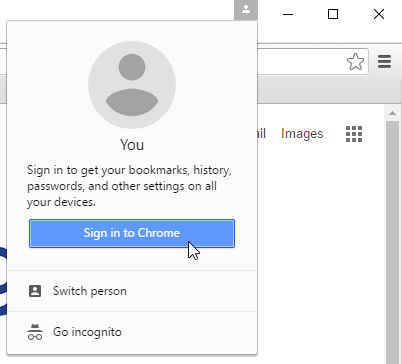
  1. Look for the little person icon in the upper right corner of your browser window and click on it. 
  2. Click the “Sign in to Chrome” button”
  3. Sign in with your Google account
  4. Link your Chrome data to this account?  Click “Link Data”
  5. You are now signed into Google Chrome.  Click “Ok Got, It”
Once you do this you should see your name appear in the upper right corner where the person icon was previously.  When you go to a new computer simply follow these steps and your info will follow you to the new device.
If you are concerned about signing out of a device, this article from Google should answer your questions. [read article here].
This video demonstrates signing into Chrome.  [Watch it]
Other cool things Google has added over the past three months
  • Google launches new “What’s New in G Suite” page - Resource Link
  • Google Earth gets new Education category with classroom activities - Resource Link
  • Watch the live “Bear Cams” in Google Earth - Resource Link
  • Google Forms gets updates including suggested response validations, cross-domain file uploads, save preferences, checkbox grid question type, and section reordering - Resource Link
  • Google Meet gets text chat feature - Resource Link
  • Google Expeditions gets solo mode and annotation tool - Resource Link
  • YouTube shutting down its video editor and photo slideshow tools on September 20 - Resource Link
  • Duplicate Sections in Google Sites - Resource Link
  • Revision History becomes Version History and gets option to name version - Resource Link
  • Easier option to preview and accepts Suggested Edits in Doc - Resource Link


For more helpful information and the archive of previous Check This Out! Digests, go to http://www.greenlocalschools.org/technology.aspx

bulldogstrong.jpg

Green Local Schools
Tech Integration Team

Monday, January 30, 2017

Black Menu for Google

This productivity extension will give you quick access to your favorite Google tools from any webpage.  
I want to thank Marc Clendaniel for showing me this extension.  If you have not added any extensions to your Google account, this would be a good one try.  Black Menu is a productivity extension, so its main role is to help you do things faster and easier.  
What does it do?
Black Menu is an extension, so once added, it lives in the upper right corner of your browser.  That means it is always available on any webpage you visit. Black Menu is a drop down menu that has a customizable list of Google Apps.  It will give you the ability to use the app from within the menu itself without leaving the page you are visiting.
What Google Apps are available?
Black Menu comes with some of the common apps already listed, but you are able to add ANY Google App that you want to the menu.  You can also remove any apps that you feel you don’t use enough to have listed in the initial menu. But the nice thing is that ALL the apps are available from the “Search Google Shortcuts” area.   
Samples of things you can do:
Here is a quick list of some of the things you can do with Black Menu.
  1. Easily add your other Google accounts to the menu.  This makes it easy to bounce back and forth between your personal account and your school account.
  2. Change the order of the apps to put the ones you use most often at the top of the menu.
  3. Remove apps from the main menu that you don’t use.
  4. Add apps to the main menu that you do use (i.e. Google Classroom)
  5. Do a Google Search from within the menu.  This keeps you from going back to the Google homepage to do a search.
  6. Gives you quick access to your Google drive AND quick access to creating new Docs, Sheets, Slides, or Forms all from within the menu.
This video shows how to add Black Menu as well as demonstrates how the items listed above work.   You can view the video [Here].

For more helpful information and the archive of previous Check This Out! Digests, go to http://www.greenlocalschools.org/technology.aspx