Thursday, March 15, 2018

Flipgrid

Where social learning happens. Every student has a voice. Let’s amplify  
Flipgrid is where your students can go to share ideas and learn together. It’s where students amplify and feel amplified. It’s video the way students use video. Short. Authentic. And fun! That’s why it’s the leading video discussion platform used by tens of millions of PreK to PhD educators, students, and families in 150 countries.
One of the great things about flipgrid is there is no login required.  This makes it accessible to students at every grade level. As the classroom teacher you can prompt the class with a topic and then students are able to provide a short 1 minute 30 second response.  Students can watch and listen to their classmates responses as well.
Other features:
  • Password protect the topic
  • Allow users to share a grid, topic or video on twitter, facebook or Google Classroom
  • Allow students to download their videos after creating a response
  • Teachers can receive an email notification when new videos are added to a topic
  • Auto generated captions can be added to assist students with hearing difficulty
Let’s Try it!
I have created a flipgrid for you to see how it works.  Go to https://flipgrid.com/dcbf53 and click on the .   You will want to use a computer/chromebook with a webcam and microphone.  Just record your answer and move through the steps. This will give you an idea of how easy it will be for your students as well as provide you with some ideas from your colleagues.  

For more helpful information and the archive of previous Check This Out! Digests, go to http://www.greenlocalschools.org/technology.aspx

bulldogstrong.jpg

Green Local Schools
Tech Integration Team

Friday, February 16, 2018

Roster to Slides

Quick way to provide a slide for each student in your class in the same Google Slides presentation.   Collaboration made easy!  
This is a great resource created by Alice Keeler!  This add-on will create a slide for each of your students allowing your class to work collaboratively on a single Google Slides document.  Simply follow the steps below and you will have a Slides presentation ready for your class to build  together on any topic you choose.
Roster to Slides
  1. Make a copy of this Google Sheet - Click here to make a copy
  2. From the add-on menu choose “Roster to Slides” - give them  a second to load
  3. Choose setup
  4. Authorize the script by clicking continue
  5. Choose your Google account and click “Allow”
  6. Paste or type your class roster into column A in the Sheets document
  7. From the add-on men choose “Roster to Slides” and choose “create slides”
  8. Script will run and create a Google Slides presentation in your Google Drive
  9. Go to your Google Drive and open the new Google Sheet called “Roster to Slides”.  
  10. You can rename this file by right clicking and choose rename if you would like.
This Google Slides document now has a slide with the student’s name followed by a blank slide for them to work on.  You can make the Google Slides available to your students through Google Classroom.  Simply make a new assignment and use this document, but be sure to NOT give each student a copy.  This will allow them to all work on the same presentation and add content to the slide you made for them. This is a great way to make a collaborative class assignment where each student is able to add their own specific piece to the overall project.


bulldogstrong.jpg


Wednesday, January 17, 2018

Pear Deck in Google Slides

A great way to increase student engagement in your Slides presentation  

It is a new year and perhaps you are looking for a way to increase student participation and engagement in some of your tired old presentations.  Pear Deck has been around for quite awhile, but just recently has been added as a free add-on to Google Slides.
What can Pear Deck do for me and my class?
  • Add interactive content
  • Multiple Choice questions within the presentation
  • Short answer text directly on your slides
  • Number response options
  • Drawing with a sketch tool to illustrate their understanding
  • Click and drag options to make engaging interaction
  • Works on Google Slide presentations you have already made!


Still need to see more?


How do I get the Pear Deck Add-on?
To install the Pear Deck Add-on follow these simple steps.
  • Login to your Google Account
  • Open up an existing OR blank Google Slides presentation
  • From the Add-on menu choose “Get add-ons…”
  • Search for “Pear Deck”
  • Click the “+Free”
Using the Pear Deck Add-on
Once you have added Pear Deck, you can begin using it by going to the Add-on menu and selecting “Open Pear Deck Sidebar”.  This will launch the sidebar with several templates for you to start using right away.  Just add the slides you want to use directly into one of your existing Slides presentations.  
Using the presentation with your students
When you are ready to start using the presentation with your students simply open your presentation, go to the add-on menu and choose Pear Deck and “Present with Pear Deck”.  The screen will display directions for your students to join and follow along with your presentation.
Be watching for an after school session on this Add-on and other Slides Add-ons coming in February!


bulldogstrong.jpg

Friday, December 15, 2017

Add More Fonts to Google

Wish you had more font options in your Google Apps, Web Fonts is the solution  
When you first begin to use G-Suite tools like Google Docs, you may be frustrated by the font choices you have available.  But fear not, there is an easy way for you to add hundreds of different fonts to be used in Docs, Sheets, Slides, and Drawings.  
What Fonts are available?
The easies way to see what is available is to go to the Google Fonts page (https://fonts.google.com/). From this page you can filter by Categories of fonts (Serif, Sans Serif, Display, Handwriting, and Monospace).  You can also sort the fonts (Trending, Popular, Date Added, Alphabetical). You can also look at the fonts in terms of number of styles, thickness, slant and width.  Each font has a display of what it looks like to make it easy for you to see if it will work for your needs.
Adding the font
Once you have identified the font(s) you would like to add, it is easy to include them to your font list.
  • Go into one of the G-Suite apps (Docs, Sheets, Slides or Drawing)
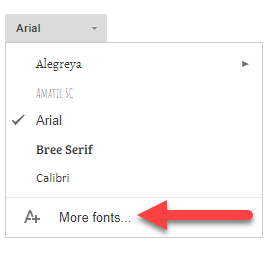
  • Click on the “Fonts” dropdown 
  • At the bottom of this list you will see “More fonts…”
  • From the fonts window that opens search/filter  for the font name you want to add
  • Click on the font you want to add
  • Click “Ok”
Since these fonts are “Web Fonts”  they are stored in the cloud and as such will be available anytime the document is opened.  This means that the font will be available for ANYONE who looks at the document. This is very different from what you may have experienced using different fonts in Office apps.
For more helpful information and the archive of previous Check This Out! Digests, go to http://www.greenlocalschools.org/technology.aspx

bulldogstrong.jpg

Green Local Schools
Tech Integration Team

Wednesday, December 13, 2017

Embed Video into Docs

Three ways to Embed Video into a Google Doc.  
First let me give credit where credit is due.  I picked up these tips from our friend Eric Curts on his Blog at Control Alt Achieve (this site can keep you busy with ideas for the whole school year!).  But I did think it would be helpful to break these down in a quick “Check This Out!” format, so here we go!  By default you can’t insert a video into a Google doc like you can in other apps (i.e. Sheets), so you have to cheat to get them into a document.  This can be a helpful thing for you students - be able to have a video they need to watch and then respond to directly in the document in which you want them to respond.
CHEAT NUMBER 1 - Add Hyperlinks
This really doesn’t put the video in the doc, but will let them click on the link to open the video.
  1. Type the text that will be a link
  2. Select the text
  3. Click “Insert” in the top menu
  4. Add the link address in the pop-up box
  5. Click “Apply”
If the video is in your Drive, be sure to change the permissions to “Anyone with the link can view”.
My Example - Watch this video
CHEAT NUMBER 2 - Use DocuTube Add-on
If you are unfamiliar with how to use Add-ons, please refer to the October Check This Out. The DocuTube add-on will scan through a document looking for links to videos to play.
  1. Add a video link to your document (see Cheat #1)
  2. You and your students add the DocuTube Add-on
  3. Run the DocuTube Add-on
  4. Choose the video source (document if you added the link in the document)
  5. Choose where the video will play (sidebar or pop-up window)


This is a nice feature because the student doesn’t leave the document.  Videos must be a YouTube video for this to work (no Vimeo, or links to video in your drive).  Also the student needs edit rights for the document to run the DocuTube add-on.
CHEAT NUMBER 3 - Embed a Google Drawing with a Video
This cheat involves copying a video that has been added to a Google Slide and pasting it into a Google Drawing and then using that Google Drawing in your Doc.  WHAT?! Here are the steps.
  1. Create a Google Slides document
  2. Insert a the video you want to use in one of the slides
  3. Click on it then copy it
  4. Open a Google Doc
  5. Choose Insert...Drawing
  6. In the blank Canvas that opens, paste the copied video
  7. To play the video - double click on the video (try it below in my example) then double click the video when it opens in Drawing.

Hopefully one of these methods will give you the results you need.  Eric offers a fourth method that is rather complicated and results in no sound, but does actually embed a playing video into the document.  I am thinking if you want a video in a document you probably want sound, so I am leaving this cheat off my list. If you want to see Eric’s full explanation of each cheat, it can be viewed here.
For more helpful information and the archive of previous Check This Out! Digests, go to

bulldogstrong.jpg

Green Local Schools

Tech Integration Team