Wednesday, January 17, 2018

Pear Deck in Google Slides

A great way to increase student engagement in your Slides presentation  

It is a new year and perhaps you are looking for a way to increase student participation and engagement in some of your tired old presentations.  Pear Deck has been around for quite awhile, but just recently has been added as a free add-on to Google Slides.
What can Pear Deck do for me and my class?
  • Add interactive content
  • Multiple Choice questions within the presentation
  • Short answer text directly on your slides
  • Number response options
  • Drawing with a sketch tool to illustrate their understanding
  • Click and drag options to make engaging interaction
  • Works on Google Slide presentations you have already made!


Still need to see more?


How do I get the Pear Deck Add-on?
To install the Pear Deck Add-on follow these simple steps.
  • Login to your Google Account
  • Open up an existing OR blank Google Slides presentation
  • From the Add-on menu choose “Get add-ons…”
  • Search for “Pear Deck”
  • Click the “+Free”
Using the Pear Deck Add-on
Once you have added Pear Deck, you can begin using it by going to the Add-on menu and selecting “Open Pear Deck Sidebar”.  This will launch the sidebar with several templates for you to start using right away.  Just add the slides you want to use directly into one of your existing Slides presentations.  
Using the presentation with your students
When you are ready to start using the presentation with your students simply open your presentation, go to the add-on menu and choose Pear Deck and “Present with Pear Deck”.  The screen will display directions for your students to join and follow along with your presentation.
Be watching for an after school session on this Add-on and other Slides Add-ons coming in February!




bulldogstrong.jpg

Friday, December 15, 2017

Add More Fonts to Google

Wish you had more font options in your Google Apps, Web Fonts is the solution  
When you first begin to use G-Suite tools like Google Docs, you may be frustrated by the font choices you have available.  But fear not, there is an easy way for you to add hundreds of different fonts to be used in Docs, Sheets, Slides, and Drawings.  
What Fonts are available?
The easies way to see what is available is to go to the Google Fonts page (https://fonts.google.com/). From this page you can filter by Categories of fonts (Serif, Sans Serif, Display, Handwriting, and Monospace).  You can also sort the fonts (Trending, Popular, Date Added, Alphabetical). You can also look at the fonts in terms of number of styles, thickness, slant and width.  Each font has a display of what it looks like to make it easy for you to see if it will work for your needs.
Adding the font
Once you have identified the font(s) you would like to add, it is easy to include them to your font list.
  • Go into one of the G-Suite apps (Docs, Sheets, Slides or Drawing)
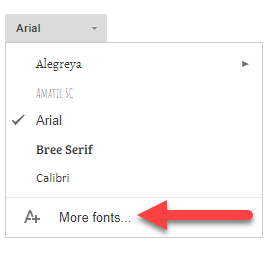
  • Click on the “Fonts” dropdown 
  • At the bottom of this list you will see “More fonts…”
  • From the fonts window that opens search/filter  for the font name you want to add
  • Click on the font you want to add
  • Click “Ok”
Since these fonts are “Web Fonts”  they are stored in the cloud and as such will be available anytime the document is opened.  This means that the font will be available for ANYONE who looks at the document. This is very different from what you may have experienced using different fonts in Office apps.
For more helpful information and the archive of previous Check This Out! Digests, go to http://www.greenlocalschools.org/technology.aspx

bulldogstrong.jpg

Green Local Schools
Tech Integration Team

Wednesday, December 13, 2017

Embed Video into Docs

Three ways to Embed Video into a Google Doc.  
First let me give credit where credit is due.  I picked up these tips from our friend Eric Curts on his Blog at Control Alt Achieve (this site can keep you busy with ideas for the whole school year!).  But I did think it would be helpful to break these down in a quick “Check This Out!” format, so here we go!  By default you can’t insert a video into a Google doc like you can in other apps (i.e. Sheets), so you have to cheat to get them into a document.  This can be a helpful thing for you students - be able to have a video they need to watch and then respond to directly in the document in which you want them to respond.
CHEAT NUMBER 1 - Add Hyperlinks
This really doesn’t put the video in the doc, but will let them click on the link to open the video.
  1. Type the text that will be a link
  2. Select the text
  3. Click “Insert” in the top menu
  4. Add the link address in the pop-up box
  5. Click “Apply”
If the video is in your Drive, be sure to change the permissions to “Anyone with the link can view”.
My Example - Watch this video
CHEAT NUMBER 2 - Use DocuTube Add-on
If you are unfamiliar with how to use Add-ons, please refer to the October Check This Out. The DocuTube add-on will scan through a document looking for links to videos to play.
  1. Add a video link to your document (see Cheat #1)
  2. You and your students add the DocuTube Add-on
  3. Run the DocuTube Add-on
  4. Choose the video source (document if you added the link in the document)
  5. Choose where the video will play (sidebar or pop-up window)


This is a nice feature because the student doesn’t leave the document.  Videos must be a YouTube video for this to work (no Vimeo, or links to video in your drive).  Also the student needs edit rights for the document to run the DocuTube add-on.
CHEAT NUMBER 3 - Embed a Google Drawing with a Video
This cheat involves copying a video that has been added to a Google Slide and pasting it into a Google Drawing and then using that Google Drawing in your Doc.  WHAT?! Here are the steps.
  1. Create a Google Slides document
  2. Insert a the video you want to use in one of the slides
  3. Click on it then copy it
  4. Open a Google Doc
  5. Choose Insert...Drawing
  6. In the blank Canvas that opens, paste the copied video
  7. To play the video - double click on the video (try it below in my example) then double click the video when it opens in Drawing.

Hopefully one of these methods will give you the results you need.  Eric offers a fourth method that is rather complicated and results in no sound, but does actually embed a playing video into the document.  I am thinking if you want a video in a document you probably want sound, so I am leaving this cheat off my list. If you want to see Eric’s full explanation of each cheat, it can be viewed here.
For more helpful information and the archive of previous Check This Out! Digests, go to

bulldogstrong.jpg

Green Local Schools

Tech Integration Team

Monday, October 23, 2017

Classroom Bridges

Making classroom connections with other classes around the world.  
Have you been looking for a way to connect with other classrooms around the world but never really knew how to get started?  Classroom Bridges (CB) helps put classrooms in touch with each other.  CB is Katie Siemer’s Google Innovator project and is designed to help develop global and cultural awareness along with collaboration skills.
How to use the Classroom Bridge
  1. Fill out the form on the Sign Up page to let other teachers know you are willing to connect.
  2. Go to the Find a Classroom page once you have signed up to find another classroom to start connecting. On this page, you can filter your search by location, grade level, subject area and more.
  3. Contact the other teacher with information they provided (email, social media, etc.). Together, the two (or more) of you will work together outside of this website to develop your classroom connection activity/project.
That is all you need to do to begin to make connections.  If you are looking for ideas of what to do once you make the connection, CB has a Resource page that has a few suggestions.  I know we have a lot of creative teachers in this district so coming up with ideas should not be difficult.
Listen to a short one minute video explanation of the project by Katie Siemer [watch video]
For more helpful information and the archive of previous Check This Out! Digests, go to http://www.greenlocalschools.org/technology.aspx


bulldogstrong.jpg

Green Local Schools
Tech Integration Team

Wednesday, October 4, 2017

Great Add-ons for Docs

Are you ready to make Google Docs work smarter for you and your students?.  


Last year I presented you with an article about the differences between Google Apps, and Extensions   [view it here].  A third option to use in Google are Add-ons.  Add-ons are something you can add to Google products that work from within the application.  In this edition of “Check This Out! Tech Digest”, I would like to focus on Add-ons that you can use in Google Docs.
How do I get an add-on to use in Google Docs?
  1. Open any Google Doc (a blank one will work just fine)
  2. From the “Add-on” menu choose “Get Add-Ons”
  3. The Add-ons store opens that has a search box at the top
  4. Type the name of the Add-on you would like to add
  5. Click the “+Free” to install the add-on
That is all you have to do.  Now that add-on will be available in EVERY doc you use when you are logged in on your account.
Here is a list of Add-ons for Google Docs that you may want to try.
  • Grackle Marks - Convenient tools for reading and sharing documents, including highlighting, bookmarking, text and image redaction, etc.
  • GradeProof AI - Artificially intelligent proofreading for Google Docs. Instantly correct spelling, grammar and phrasing with GradeProof.  It's intelligent algorithms instantly correct and improve your writing.
  • MLA Formatting - A simple addon that can insert a MLA Heading into your document and make your text in MLA Format
  • Mindmeister - The MindMeister add-on for Google Docs turns any bullet-point list into a mind map, and automatically inserts it into your document. The first point of your list becomes the root topic of the mind map, while the rest of the first-level points are turned into first-level topics. Second-level points are turned into the equivalent second-level topics and so on.
  • Word Cloud Generator - Use this add-on to quickly assess what your emerging theme is, how to best categorize your document, or if it is someone's else's document - find out the theme of the document without reading it.
  • URL Shortener - Tired of long URLs in your paper or report? Want to send your friends a link to your document that isn't 80 characters long? Use URL Shortener to easily make URLs smaller and more manageable.
  • DocuTube - Stop leaving your document to watch a video. This add-on grabs any YouTube link and embeds it in a popup in your Google Doc.  
  • DocAssist - Create a rubric and give quick audio or text feedback on students' writing. Supports student revisions and Google Classroom.
  • Template Gallery - Browse a large gallery of professionally designed templates, including calendars, schedules, invoices, time sheets, budgeting tools, letters, resumes, financial calculators, and more.


For more helpful information and the archive of previous Check This Out! Digests, go to http://www.greenlocalschools.org/technology.aspx

bulldogstrong.jpg

Green Local Schools
Tech Integration Team